Stream TV Soundbar - Factory Data Reset (Powered On)
Here's how to factory / hard reset your Stream TV Soundbar if the screen freezes or app, audio or sync issues occur.
Perform a factory data reset only if necessary as it removes your Google™account and all data including system data, app data and remote settings.
Preferred Method
- If necessary, press theHome button
on your Stream TV remote to wake up your device.
If the device is unresponsive, an alternate method is available. - From the Home screen, select theSettings menu
(upper-right).
Utilize the 5-way navigation pad on the remote to highlight and the center (OK) button to select. - Navigate: (at the bottom).
- Review the 'Reset' message then selectReset.
- SelectErase everything.Allow a few minutes for the reset to complete.If applicable, set up the device again. If the Stream TV Voice Remote isn't available, the Remote Control app and a wired connection is required for setup.
For additional info, see this Stream TV support page.
Alternate Method
If the device is responsive, the preferred reset method should be performed.
- Ensure the soundbar is powered on and connected to a TV using an HDMI cable.
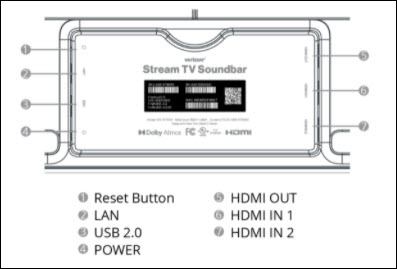
- With the device powered on and connected to a TV using an HDMI cable, locate the reset button on the bottom of the soundbar in the rectangular opening labeled with a reset icon
.
- Using a paperclip (or similar tool), press and hold theReset buttonfor approximately 10 seconds until the soundbar turns off.Allow a few minutes for the soundbar to power on and the reset to complete.and a wired connection is required for setup.If applicable, set up the device again. If the Stream TV Voice Remote isn't available, the Remote Control app
For additional info, see this Stream TV support page.