Smart Wrist by Orbic - Use Pedometer
Here's how to set up and use the pedometer on your Smart Wrist.
- Ensure the software on your Smart Wrist™ by Orbic® is up to date as the steps below apply to the most recent version.
- Additional Health settings are available via the Orbic Wear app which can be installed via the Google Play™ Store or App Store®.
Initial Setup
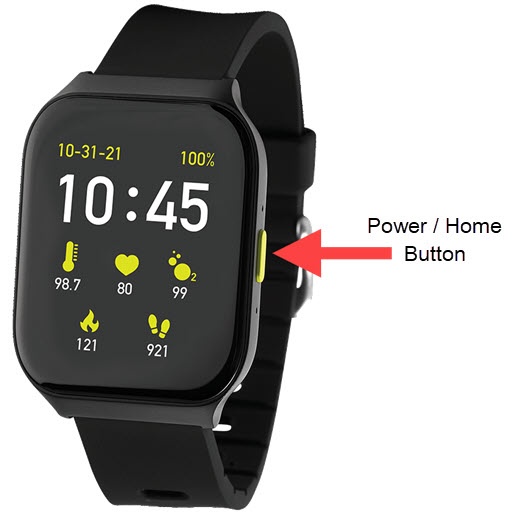
- From the watch screen, press thePower / Home buttonto open the apps screen.
- Tap theOrbic Health icon
.
- Swipe up on the screen then tapSettings.
- TapPersonal Data.
- Tap on and adjust any of the following as desired:
- Gender
- Date of birth
- Height
- Weight
- Swipe the screen from left to right to return to the previous screen.
- TapHeart Rate Alertthen adjust any of the following as desired:
- Heart Rate AlertTap to turn on
or off
.
- Maximum WarningSet the bpm limit to receive an alert when Heart Rate Alert is on.
- Minimum WarningSet the bpm limit to receive an alert when Heart Rate Alert is on.
Change Goal
- From the watch screen, press thePower / Home buttonto open the apps screen.
- Tap theOrbic Health icon
- Tap theExercise Settings icon
next to the following options to adjust as desired:
- Outdoor running
- TapGoal Settings.
- Tap any of the available switches to turn onYou can also tap one of the available options then adjust the goal / limit.
- Swipe the screen from left to right to return to the previous screen.
- Tap Exercise Reminder and adjust the settings as needed.
- Brisk walking
- TapGoal Settings.
- Tap any of the available switches to turn onYou can also tap one of the available options then adjust the goal / limit.
- Swipe the screen from left to right to return to the previous screen.
- Tap Exercise Reminder and adjust the settings as needed.
- Outdoor cycling
- TapGoal Settings.
- Tap any of the available switches to turn onYou can also tap one of the available options then adjust the goal / limit.
- Swipe the screen from left to right to return to the previous screen.
- TapExercise Reminderthen adjust the settings as needed.
Change Units
- From the watch screen, press thePower / Home buttonto open the apps screen.
- Tap theSettings icon
.
- TapDisplay.
- TapUnits.
- Tap one of the following options to adjust:
- TemperatureChoose to display the temperature in Celsius or Farenheit.
- DistanceChoose to display the distance in Kilometer or Miles.
- WeightChoose to display weight in Kilogram or Pound.