Smart Wrist by Orbic - Enable / Disable / Modify Screen Lock
Here's how to set up, change or disable the screen lock option (PIN) for your Smart Wrist.
Ensure the software on your Smart Wrist™ by Orbic® is up to date as the steps below apply to the most recent version.
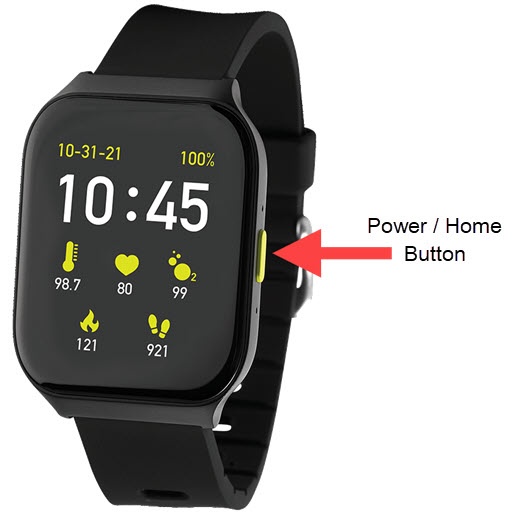
- From the watch screen, press thePower / Home buttonto open the apps screen.
- Navigate: .
- Do one of the following:
- Set up a PIN:
- Tap theLock Screen Password switchto turn on.
- Enter a 4-digit numeric PIN.
- Re-enter the numeric PIN to confirm.
- Change PIN:
- TapChange Password.This option is only available when a PIN is already set.
- Enter the current 4-digit PIN.
- Enter a new 4-digit numeric PIN.
- Re-enter the new PIN to confirm.
- Disable Screen Lock
- Tap theLock Screen Password switchto turn off.
- To confirm, enter the current 4-digit PIN.