Verizon 5G Internet Gateway (LVSKIHP) Sign in to the Admin WebGUI
Verizon 5G Internet Gateway (LVSKIHP)
Sign in to the Admin WebGUIAccessing the admin page for your 5G Internet Gateway (LVSKIHP) lets you configure Wi-Fi or internet settings, update firmware or enhance security.
Before you begin
If the Wi-Fi connection has been previously disabled through the admin page, you may not be able to enable it after a Factory Reset is completed.
Ensure you have an active connection (wired or wireless) between the router and the device you're using to access the admin page.
Steps
- Establish a Wi-Fi or wired network connection with a device (e.g., computer, smartphone, tablet, etc.).If connecting to a computer, select the applicable operating system for assistance:
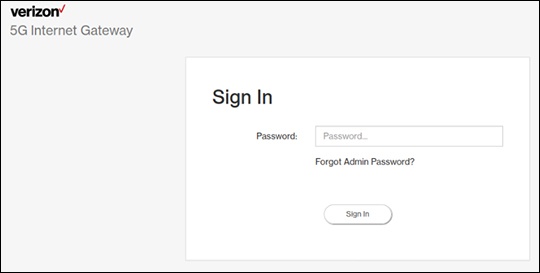
- From the device that's connected to the Gateway, open a web page then enterhttp://my.routerinto the URL address field.Alternatively, enter 192.168.0.1 into the URL address field.If the admin password is forgotten, clickForgot Admin Password?then answer a security question to reset the password.
- Enter the Wi-Fi / WebGUI password then clickSign In.The default WebGUI password can be found on the bottom of the router (labeled 'Administrative URL / Password).