Verizon 5G Internet Gateway (LVSKIHP) Set Up Port Forwarding
Verizon 5G Internet Gateway (LVSKIHP)
Set Up Port ForwardingPort forwarding lets external devices access specific services on your home network. Learn how to configure it on your 5G Internet Gateway (LVSKIHP) for smoother gaming and hosting.
Before you begin
A reset to factory default deletes all changes made to the configuration and connected clients (e.g., Network Name (SSID), Wi-Fi/Admin Password, etc.) need to reconnect
Steps
- Sign in to the Admin WebGUI.You must be connected to the 5G Internet Gateway to access the admin page.
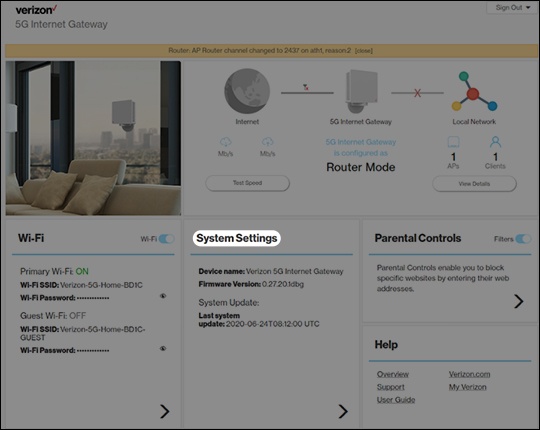
- From the Router Home screen, clickSystem Settings.
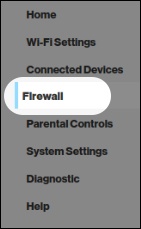
- From the left menu, clickFirewall.
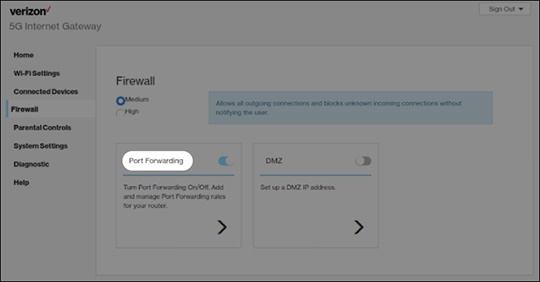
- From the Firewall section, clickPort Forwarding.
- From Port Forwarding, configure the applicable forwarding options then clickAdd.Click thePort Forwarding switchto turn on or off.Rules under Configured Ports are enabled when a checkmark is present.
- Rule Name
- From Port
- Protocol (select from the dropdown menu)
- IP Address
- To Port