Stream TV - Set Up via Wired Connection
Here's how to set up your 1st-generation Stream TV via wired internet connection (Ethernet cable).
- The steps below apply to the original Stream TV, which can be identified by the Ethernet port on the back of the device. If you have the 2nd-generation Stream TV model, a wired Internet connection is not available. Refer to Stream TV - Set Up Device for set up assistance.
- Before you start, confirm you have:
- an internet connection.
- a Google™ (Gmail™) account.If you don't already have a Google account or have trouble logging in, visit this Google site for help.
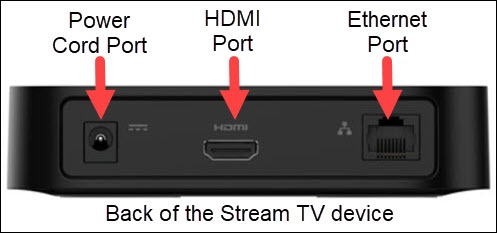
- Connect an Ethernet cable from the Stream TV device to an available Ethernet port on your router.Ethernet cable not included.To set up without an Ethernet cable, refer to Stream TV - Set Up Device.
- Connect the HDMI cable from your Stream TV to your TV.
- Connect the power cord from your Stream TV to an electrical outlet.
- Turn on your TV then set it to the correct HDMI input.Refer to the TV manufacturer for help.
- Pair your Stream TV Voice Remote or Remote Control app.
- If necessary, wait for your Stream TV to install system updates.These take a few minutes and your device will restart multiple times.
- If prompted, selectOKfrom the 'A remote control software update is available' screen.SelectOKfrom the 'Your remote control software is up to date' screen if prompted.Utilize 5-way navigation pad on the remote to highlight and the center OK button to select.
- If prompted, selectBeginto set up your remote to control the volume on your TV then follow the on-screen prompts.To skip, press theBack button
on the remote twice.
- From the 'You're connected using Ethernet' screen, selectContinue.
- From the 'Sign in to your Verizon account' screen, do one of the following: information then selectSign in:If you select 'Skip', you can sign in to your Verizon account at a later time.
- Sign in using your phone or computerIf you're connected to a Wi-Fi network that features host isolation (e.g., guest networks, etc.) sign in using your remote.
- Make sure your device is connected to the same Wi-Fi network as your Stream TV.
- On the phone or computer, open a web browser and go to https://stream.verizon.com/activate.If using a smartphone, scan the QR code shown on the TV screen with a QR code reader.
- Enter the code shown on your TV screen on the website where prompted.
- If prompted, enter your My Verizon User ID or mobile number and Password, then selectSIGN IN.
- Sign in using your remote
- SelectUse remote instead.
- Enter your My Verizon User ID or mobile number then select theEnter icon.
- Enter your My Verizon password then select theEnter icon.
- If prompted, enter the answer to your secret question then selectContinue.
- From the 'Download the Stream TV app' screen, follow the prompts to download the app if desired then selectDismiss.
- Review the Terms of Service, End user license agreement, and Privacy policy then selectAccept all.
- From the 'Name your device' screen, select the desired name then selectContinue.Name is selected when circle to the right is white.
- Review the 'Get more from your Stream TV with Google' screen selectContinue.
- From the 'Make the most of your TV' screen selectSign Inthen do the following:If you select 'Skip', you can add a Google account at a later time.
- Enter your Google account email address then select theEnter icon.
- Enter your Google account password then select theEnter icon.
- From the 'Google Terms of Service' screen selectAccept.
- From the 'Google Location' screen selectYes.
- From the 'Google Help improve Android' screen selectYes.
- From the 'Install additional apps' screen, select (check) any desired apps then selectContinue.Choose 'Install all of the following apps' to select all the apps on the Recommended list.
- Press theCenter (OK) buttonto view each of the 'Features of your device' screens and to exit set up.
For additional info, see this Stream TV support page.