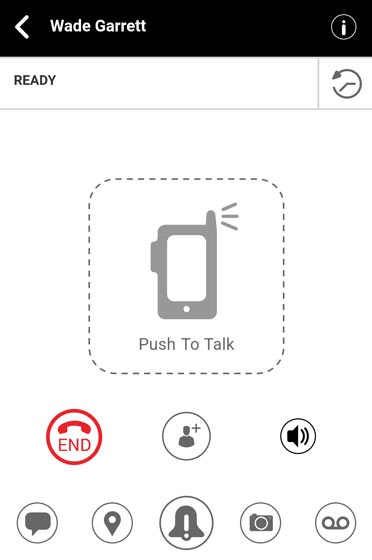
Push to Talk Plus - Send a Picture or Video Attachment
Here's how to share a picture or video attachment using Push to Talk Plus.
- Pictures, video, location, voice messages or PDF files are sent by attachment.
- Photo or video capture options vary depending on your camera settings, gallery or installed image management app(s).
- Attachment(s) are limited to 20MB per message.
- From the Ready screen, tap theCamera icon
.
Alternatively, tap theHistory iconthen tap the
Camera icon - From the prompt, do any of the following to send:
- To take a photo:
- TapTake Photo.
- Aim then tap theCamera button icon.
- Review the image then tap the Check icon
or tap Ok.
- From the Confirm prompt, tapOk.
- To record a video:
- TapRecord Video.
- Aim then tap theRecord iconto begin recording.
- To stop recording, tap theStop icon.
- Review the video then tap the Check icon
- From the Confirm prompt, tapOk.
- To share an image:
- TapImage Gallery.
- Locate then select the preferred image.
- From the Confirm prompt, tapOk.
- To share a video:
- TapVideo Gallery.
- Locate then select the preferred video.
- From the Confirm prompt, tapOk.