Push to Talk Plus - Edit Groups
Here's how to edit a group using Push to Talk Plus.
- Open thePush To Talk+
app.
- From the Groups tab, tap and hold the appropriate group then tapShow details.
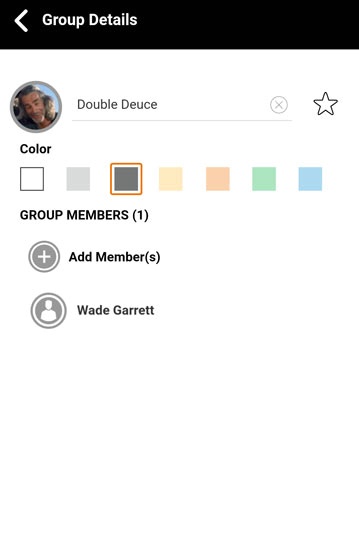
- From Group Details, do any of the following then tap theSave icon
:
A group name and a single member are the items required to save a group.- To edit the Group name:
- Tap the existing group name field.
- Enter the appropriate name.
- To add members to the group:
- TapAdd Member(s).
- Select the appropriate contact(s).
- Tap theSave icon
- To remove members from the group:
- Tap and hold the appropriate group member.
- TapRemove Member.
- From the Confirm prompt, tapYes.Repeat steps 1-3 as necessary to remove additional members.
- To rename members of the group:
- Tap and hold the appropriate group member.
- TapRename Member.
- Tap the existing member name field.
- Enter the appropriate name then tap Save.Repeat steps 1-4 as necessary to rename additional members.
- To edit the Group color:
- TapColorthen select a color from the list.
- To edit the Group avatar:
- Tap theDefault icon(in the upper left) then select an avatar from the list.Alternately, tap the Camera or Gallery icons to take or select a photo to use as an avatar.