Configure DHCP - Verizon 4G LTE Broadband Router
Here's how to configure DHCP settings for your 4G LTE Broadband Router.
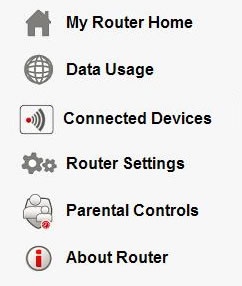
- Access the router configuration tool then clickRouter Settings(on the left).For assistance with accessing the router configuration page, refer to Accessing the Router Configuration.
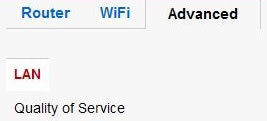
- From the Advanced tab, clickLAN.
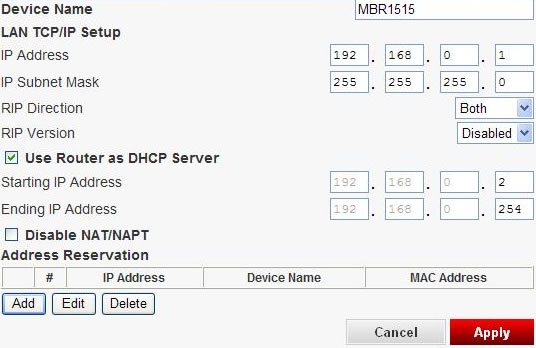
- Ensure theUse Router as DHCP Server boxis checked, enter the starting and ending IP Addresses and adjust as desired then clickApply(bottom of screen).
- To assign an IP address
- ClickAdd(under the Address Reservation table).
- Select the device (from the table) and enter the IP Address and/or Device Name then clickAdd.If the device is not listed, enter the IP address, MAC address and device name then clickAdd.
- To edit an assigned address,
- Select the device (from the table) then clickEdit.
- Edit as desired then clickApply.
- To delete an assigned address, select the device (from the table) then clickDelete.