Port Filtering - Verizon Jetpack® 4G LTE Mobile Hotspot MiFi® 4620L
Here's how to block access to services or apps on your Verizon Jetpack - MiFi 4620.
- Changing advanced settings may be harmful to the stability, performance and security of the Jetpack. Contact your local IT administrator prior to altering any of these settings.
- Port Filtering is an advanced feature. For additional assistance, contact your IT support. To obtain settings, contact the app manufacturer.
- Access the Admin Web Interface.
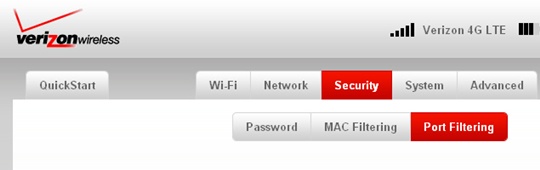
- From the Security tab, clickPort Filtering.
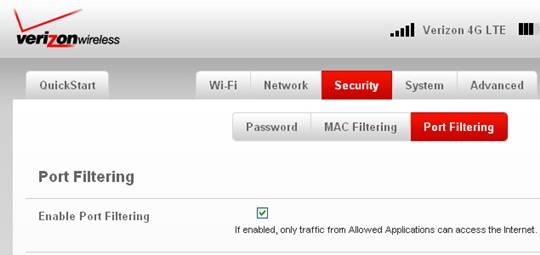
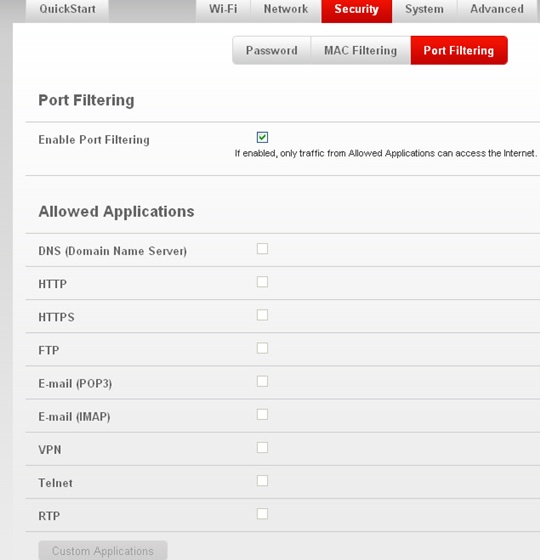
- From the Port Filtering section, selectEnable Port Filtering.Enabled when a checkmark is present.
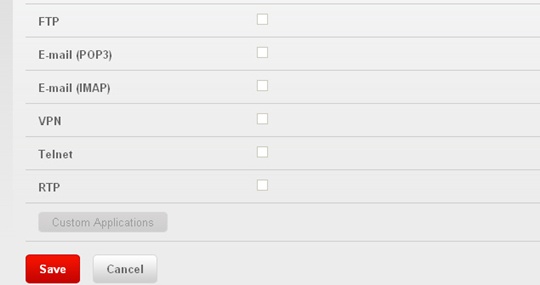
- From the Allowed Applications section, select the desired application(s).Selected when a checkmark is present.If the app isn't listed, clickCustom Applications(located in the lower-left) then enter the appropriate information.If disabling Port Filtering, skip to step 5.
- ClickSave(located in the lower-left).