Orbic JOY 2 - Common Camera Settings
Here's info on common camera settings (e.g., flash, timer, front / rear camera, etc.) for your JOY 2.
For more camera support for your Orbic® JOY 2, refer to the Camera section of the User Guide.
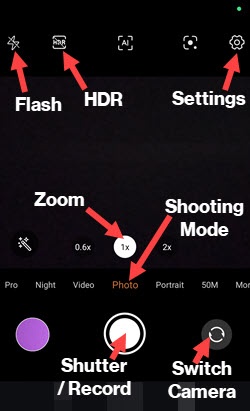
Settings
- Open theCamera app.
- Tap theSettings icon.
- Tap any of the corresponding switches to turn the following options on or off:
- Shutter sound
- QR code recognition
- Geotagging
- Tough Shot
- Face detection
- Grid
- Smile capture
- TapStorage paththen select an option (e.g., Phone Storage, SD card, etc.).
- TapPicture sizethen select an option (e.g., 9MP 16:9, 13MP 4:3, etc.).
- TapSelf-timerthen select an option (e.g., Off, 3s, 10s, etc.).
Shooting Mode
- Open theCamera app.
- Select theShooting mode(e.g., Photo, Video, Portrait, etc.).
Zoom
- Open theCamera app.
- Tap theZoom iconto quickly zoom in or out.
Front / Rear Camera
- Open theCamera app.
- Tap theSwitch Camera iconto switch between rear and front camera.
Flash
- Open theCamera app.
- Tap theFlash iconto set the flash to automatic, on or off.
HDR
HDR (High Dynamic Range) combines photos or videos taken at different exposures for one optimal photo or video.
- Open theCamera app.
- TapHDRto turn on or off.
Camera Shutter
- Open theCamera app.
- Tap theShutter iconto take a picture in any camera shooting mode (e.g., Camera, Night, etc.).
Video
- Open theCamera app.
- TapVideo.
- Tap theRecord iconto record a video.