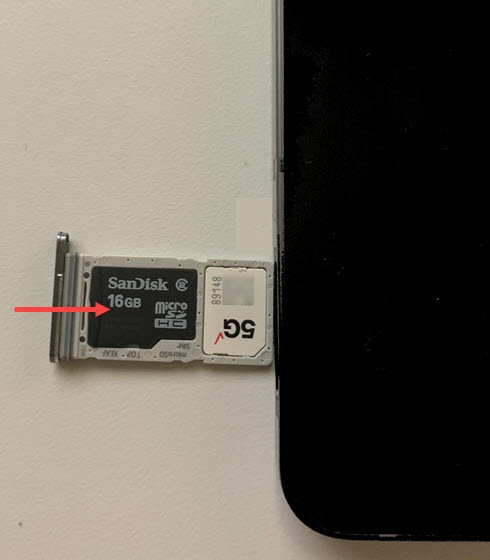
Samsung Galaxy Tab A9+ 5G Insert / Remove SIM Card
Samsung Galaxy Tab A9+ 5G
Insert / Remove SIM CardSwitching to a new device, traveling or troubleshooting a connectivity issue? Learn how to quickly and easily insert or remove the SIM card for your Galaxy Tab A9+ 5G.
Before you begin
Don't attempt to insert / remove the SIM card while your your Galaxy Tab A9+ 5G is powered on, as doing so may harm the SIM card and/or the device.
Steps
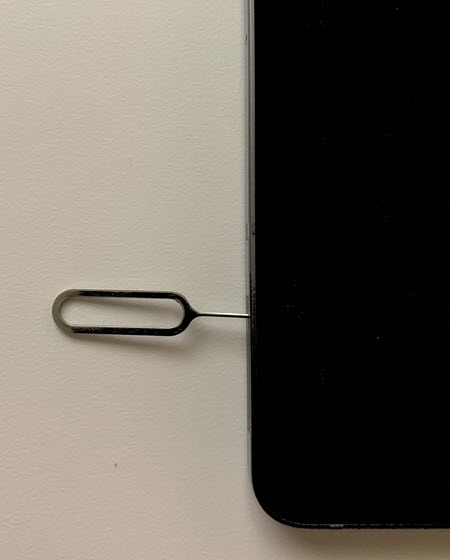
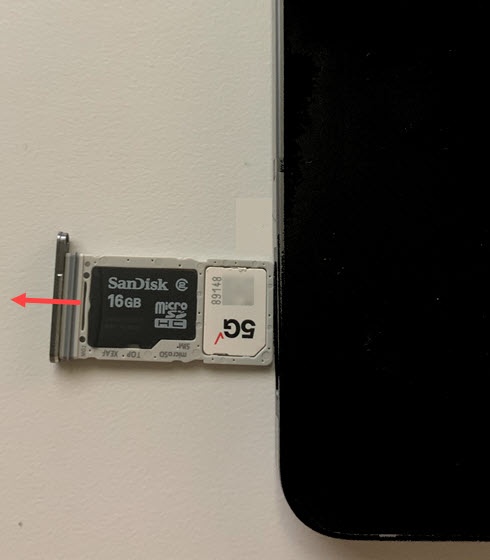
- Remove the card tray (lower-right edge with the device in portrait orientation and display facing up).Use the SIM removal tool (or a paperclip) to unlock the tray by inserting it into the provided slot then remove the tray.
- Do one of the following:
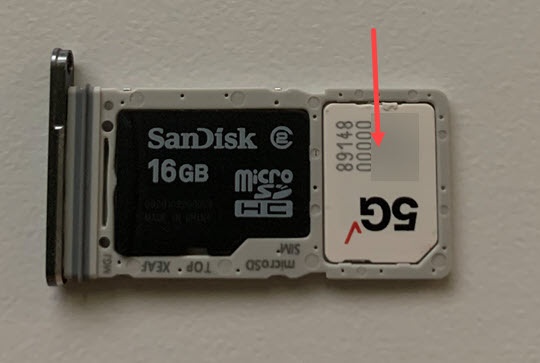
- To insert the SIM card: Insert the card into the slot on the opposite side of the tray from the SD card. Ensure the gold contacts are facing up and the notch is aligned with the SIM / SD tray.
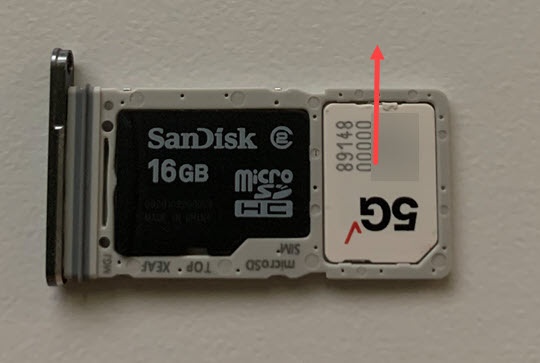
- To remove the SIM card: From the bottom of the card, carefully lift to remove. Use the opening on the opposite side of the tray to dislodge and remove the SD / memory card if one is inserted.
- Insert the card tray then press it back into its slot until it clicks.