Razer Edge 5G - Common Camera Settings
Here's info on common camera settings (e.g., HDR, timer, etc.) for your Razer Edge 5G.
Positioning of icons varies depending on orientation of the tablet.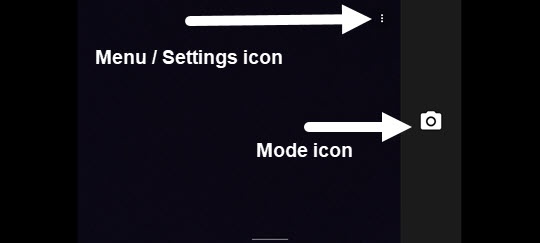
Settings
- From a Home screen, tapCamera
(lower-right).
If unavailable, swipe up on the Home screen then tapCamera. - From the camera screen, swipe right anywhere on the display to select the preferred mode (camera or video).
- Tap theSettings icon
(upper right).
If a 3-dot menuis present, swipe right to display the Settings icon.
- Perform any of the following:
- Adjust resolution & quality
- TapResolution & quality.
- TapFront camera photo.
- Tap the preferred option (e.g., 5.0 megapixels, 1.9 megapixels, etc.).
- TapVideo.
- Tap the preferred video option (FHD 1080p, HD 720p, SD 480p).
- Enable MFNR.Tap the switch to turn on
or off
.
- Enable HDRTap the switch to turn on or off.
- Enable high FPSTap the switch to turn on or off.
- Advanced
- TapManual exposure.
- Tap the switch to turn on or off.
Self-timer
Used to select the length of the delay before the camera takes a photo automatically.
- From a Home screen, tapCameraIf unavailable, swipe up or down from the center of the display then tapCamera.
- Tap theMenu icon
- Tap theSelf-timer icon
.
- Select an option:
- Off
- 3 seconds
- 10 seconds