Gizmo Watch 3 - Place a Video Call
Here's how to place a video call on your Gizmo Watch 3.
- Video calling is only compatible with the GizmoWatch Disney Edition and Gizmo Watch 3.
- In order to place a video call Video Calling must first be enabled.
- Verizon sets a time-duration limit on video calls to prevent the device from overheating. A video call on the Gizmo Watch 3 can last up to 3 minutes. A video call terminates automatically when a call's duration passes its allowable 3-minute duration limit at any time.
- A progress bar displays to indicate the remaining call duration. Once the call passes its duration limit, the call terminates.
- If the watch starts to overheat during the video call, a thermometer icon appears on the watch screen to indicate that the device is starting to overheat. The user can then terminate the call to avoid the device from overheating.
- If the thermometer icon displays and reaches its max level, the call terminates automatically and the device goes into cool-down mode.
- Cool-down mode could last several minutes based on the device and ambient temperature. While in cool-down mode, the user is not able to use the watch. After cooling down, the watch can be used as usual.
Via GizmoHub App
- Make sure the GizmoHub app is updated from either the Apple® App Store® or Google Play™ Store.
- Open theGizmoHub app
.
- From the 'Dashboard' tab, tap thePhone icon
.
- TapVideo.To end the call, tap the red circle with the X.
Via Device
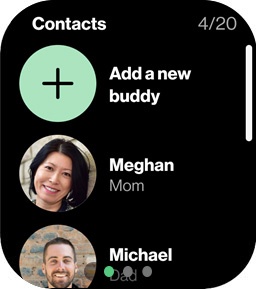
- Swipe left or right from the main screen to access the 'Contacts' screen.
- Tap on theVideo call icon
to start the call.
To end the call, tap theEnd call icon.