Verizon Receiver (LV65) Install / Set Up 5G Home - Indoor Wall Mount
Verizon Receiver (LV65)
Install / Set Up 5G Home - Indoor Wall MountMounting your Verizon Receiver (LV65) on an interior wall keeps your setup secure, neat and positioned for optimal 5G signal strength.
Before you begin
Mounting for the Verizon Receiver (LV65) is performed within the My Verizon app for Google™ Android™ and Apple® iOS.
Steps
- Make sure to complete Pairing and test for indoor signal prior to mounting the Verizon Receiver (LV65).
- Confirm the following then tapContinue:
- You’ve tested the receiver to confirm it gets a good 5G signal in this precise location.
- The wall isn’t near any water source.
- There’s room to mount the receiver vertically.
- You have the following tools on-hand:
- Power drill and 1/4” drill bit
- Screwdriver
- Hammer
- Open the indoor mounting box and remove the indoor bracket, anchors and indoor screws then tapContinue.Watch this video for a demo.
- Hold the bracket above the sticker you placed on the wall. Mark the wall through the two cutouts in the bracket where you’ll drill the holes then tapContinue.Watch this video for a demo.
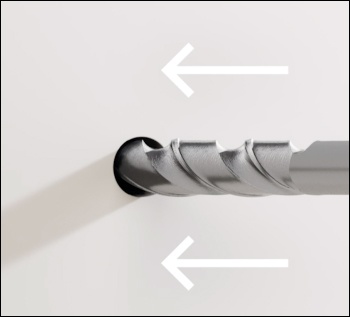
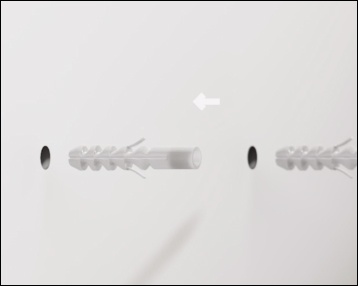
- Drill two holes (a 1/4" hole at each mark about 2 inches deep) then use the provided wall anchors and push them into the holes then tapContinue.Watch this video for a demo.
- Insert the anchors into the holes, gently tapping them in with a hammer, then tapContinue.Watch this video for a demo.
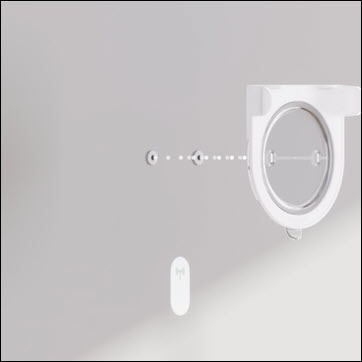
- Align the bracket to the anchors in the wall, then drive the screws into the anchors and attach the bracket to the wall. TapContinue.
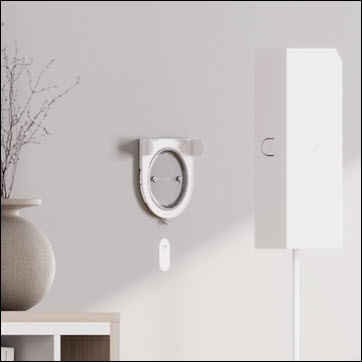
- Attach the receiver to the bracket then tapContinue.Watch this video for a demo.
- Confirm the following then tapConfirm.
- The receiver is mounted vertically.
- It's securely attached to the bracket.
- It's displaying a solid white light.
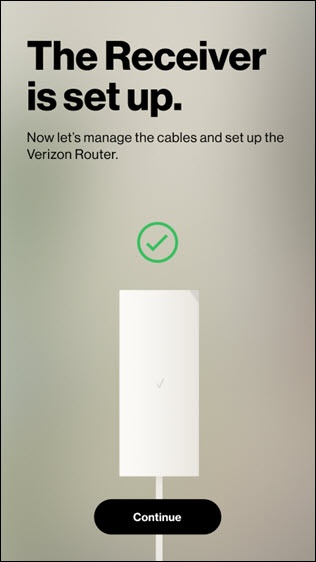
- Once 5G signal is confirmed and internet is enabled as shown in image below, tapContinueto finish the setup.This may take up to 2 minutes.If prompted, sign in to My Verizon.
- Ensure you route and manage cables properly.