One Talk CP960 IP Conference Phone Activate / Set Up Device
One Talk CP960 IP Conference Phone
Activate / Set Up DeviceActivate your One Talk CP960 IP conference phone to get started. This ensures you can make calls and connect to your company network.
Before you begin
Activation requires a valid US address for E911 functionality.
Wi-Fi Calls always originate in the U.S., even when you're outside of the U.S.
- Calls to U.S. numbers are not billed (except for 411 or other premium calls).
- Calls to international numbers are billed according to your international long distance plan.
A soft reset is needed on the desk phone when a new endpoint is added to the One Talk MDN.
Steps
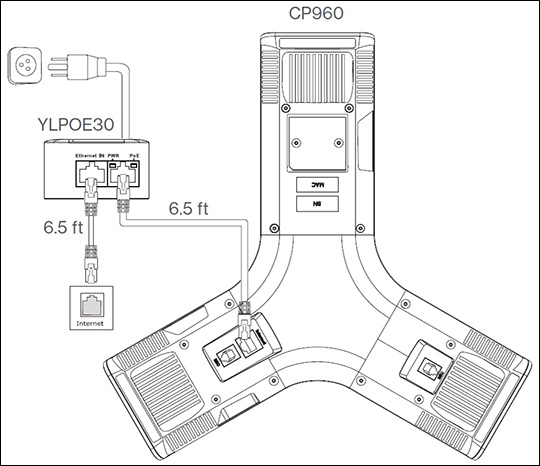
- Connect the power and wired network.This conference phone requires the Yealink YLPOE30 Power-over-Ethernet (PoE) adapter, which provides power and wired network connection using the same Ethernet cable.You can also connect to a Wi-Fi network after startup. Refer to Step 3 for more info.
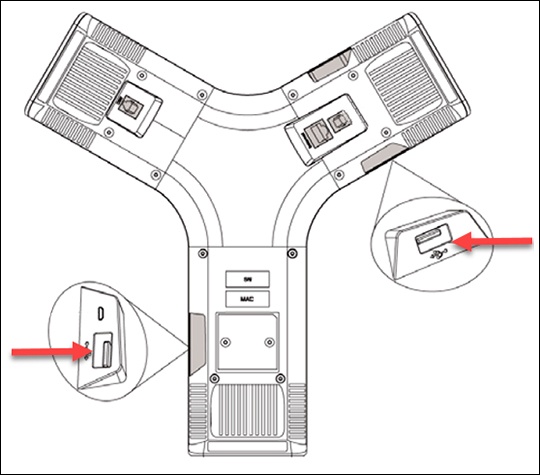
- If desired, connect a USB flash drive (for use with the Call Recording via USB feature) to either one of the USB ports.Only one USB flash drive can be used at a time.
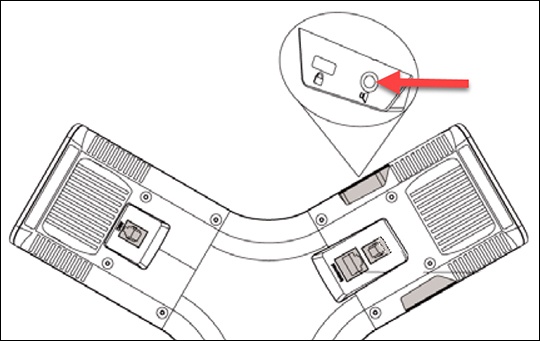
- If desired, connect any CPE90 wired microphones or CPW90 wireless microphones (sold separately).The CPE90 microphone plugs into a 3.5mm microphone port and does not require power.
- To configure Wi-Fi via the user interface:
- From the idle screen, navigate: .
- If necessary, tap theWi-Fi switchto turn on.
- Tap the desired network (SSID) to connect to it.If the network you want to connect to isn't available, tap the3-dot Options iconthen tapScanto search for available networks.
- If the network is secure, enter its password then tapConnect.If necessary, tap (check)Show advanced optionsto configure the HTTP proxy for the Browser application.
- Wait for the device to start up:
- After the IP phone is connected to the network and supplied with power, it automatically begins the initialization process.
- From the 911 notification screen, tapOK.The 911 screen displays after successful activation.