Inseego MiFi X PRO 5G UW - Restore Settings to Factory Defaults
If your Inseego MiFi X PRO 5G UW powers off, crashes / resets, freezes or runs slow, view this info.
Restore settings to Factory Defaults on your Inseego MiFi® X PRO 5G only if absolutely necessary as it removes all modified settings including Network Name (SSID), Wi-Fi / Admin Password, etc.
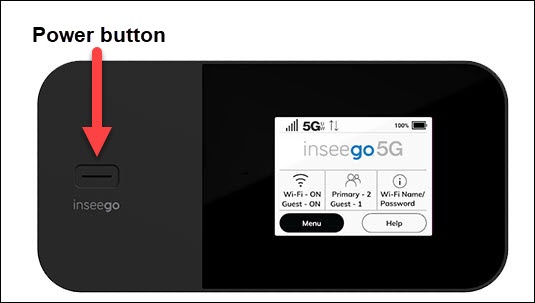
- From the Home screen, tapMenu(lower-left).If necessary, press thePower button(top-right edge) to turn on the display.
- TapSettings.
- TapFactory Reset.
- TapFactory Resetagain.
- To continue, review the disclaimer then tapConfirm.Allow several minutes for the reset process to complete.After restoring to factory defaults, ensure Power Management Settings are set to the preferred options.
- If the steps above don't work, try one of the following:
- Reset using the button method
- Reset via the admin site
Button Reset
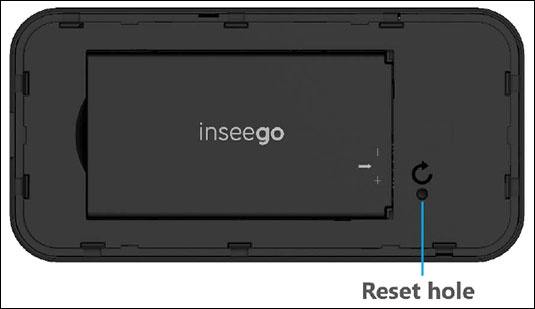
- You can also perform a factory reset by removing the battery cover then pressing the reset button (using a paperclip or similar tool) for 5 to 6 seconds or until 'MiFi resetting' appears on the display.
Admin Site Reset
- Access the Admin Web Interface.
- From the Settings section, click thenavigation arrow
(lower-right) to open the Settings page.
- From the 'Settings' tab, clickBackup and Restore.
- From the 'Restore to Factory Defaults' section, clickRestore Factory Defaults.
- To continue, review the info then clickReset.Allow several minutes for the restore process to complete.After restoring to factory defaults, ensure Power Management Settings are set to the preferred options.