TCL TAB Disney Edition - Common Camera Settings
Here's info on common camera settings (e.g., timer, front / rear camera, etc.) for your TCL TAB Disney Edition.
For additional camera settings, refer to the user guide.
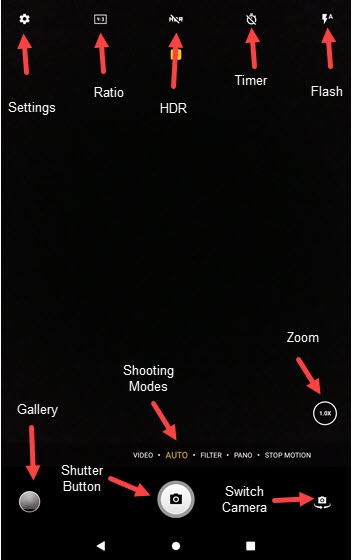
Settings
- From a Home screen, tap theCamera icon
.
If not available, swipe up to view all apps then tapCamera. - Tap theSettings
.
To reset all camera settings back to default, tapReset settings(at the bottom). - Select an option then adjust as preferred or tap the switch(es) to turn on
or off
:
- Photo size
- Video quality
- Video stabilization (EIS)
- Volume buttons function
- Touch to capture
- Grid
- Storage
- Save location information
- Shutter sound
Timer
Used to select the length of the delay before the camera takes a photo automatically.
- From a Home screen, tap theCamera iconIf not available, swipe up to view all apps then tapCamera.
- Tap theTimer icon
.
- Select an option:
- Off
- 2 secs
- 5 secs
- 8 secs
Switch Camera
- From a Home screen, tap theCamera iconIf not available, swipe up to view all apps then tapCamera.
- On the photo preview screen, tap theCamera Facing icon
to switch between rear and front-facing camera.
Shooting Modes
- From a Home screen, tap theCamera iconIf not available, swipe up to view all apps then tapCamera.
- To change the camera mode, swipe left or right to select an option:
- VIDEOCapture video.
- AUTOCapture a picture.
- FILTERAdd filters to a picture.
- PANOTap the Camera button then pan slowly in one direction.
- STOP MOTIONCapture a picture in motion.