Import Contact / Address Book Info to a Comma Separated Values (*.csv) File - Microsoft® Outlook
Here's how to import your contacts into Microsoft Outlook using a CSV file.
A comma separated values (.csv) file is a text file that contains rows of data separated by commas.
- From the desktop, navigate: .
- ClickFilethen clickOpen & Export.
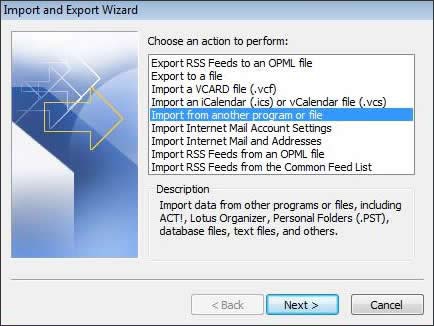
- ClickImport / Export.
- Select Import from another program or file then clickNext.
- Select "Comma Separated Values (Windows)" then clickNext.
- ClickBrowse.
- Navigate to the desired csv file then clickOK.
- From the 'Import a File' screen, clickNext.
- Select applicable contacts then clickNext.
- Select the file to be imported then clickFinish.