Verizon Router Sign in to the Admin WebGUI
Verizon Router
Sign in to the Admin WebGUIAccess your Verizon Router's admin WebGUI hassle-free to update passwords, manage devices, and optimize your home network.
Before you begin
The Admin WebGUI page isn't accessible from Verizon systems.
Establish a Wi-Fi or wired network connection with a device (e.g., computer, smartphone, tablet, etc.) you're using to access the admin page.
If connecting to a computer, select the applicable operating system (e.g., Macintosh® OS X or Windows®) for assistance:
If the Wi-Fi connection has been previously turn off through the admin page, you may not be able to turn on it after a Factory Reset is completed.
Steps
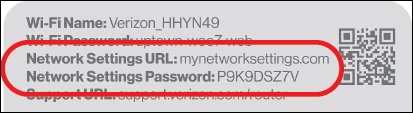
- From the device that's connected to the router, open a web browser then enterhttp://mynetworksettings.cominto the URL address field and press enter.Alternatively, enter 192.168.1.1 into the URL address field.If a 'Your connection is not private' screen displays, clickProceed.
- From the login screen, enter the Network Settings password printed on the label on the rear of your router.
- ClickLog In.The first time you access your Verizon Router, an Easy Setup Wizard displays to guide you through the setup process.