Session status messages
Session Status

Due to inactivity, your session will end in approximately 2 minutes. Extend your session by clicking OK below.

Due to inactivity, your session has expired. Please sign in again to continue.

Orbic Smart WRIST - Add an Existing Google Account

2026-10-15 07:46:19.597

Orbic Smart WRIST - Add an Existing Google Account

Adding a Google™ (Gmail™) account to your Orbic Smart WRIST lets you access email, apps, and services, as well as sync your data across multiple devices.
  • Email accounts are managed through the Android™ smartphone, not from the watch.
  • To perform the steps below, you'll need to:
    • ensure the Wear OS app is installed and updated on your Android smartphone.
    • ensure Bluetooth® is enabled on both the watch and smartphone.
    • keep the watch near your smartphone throughout the entire process.
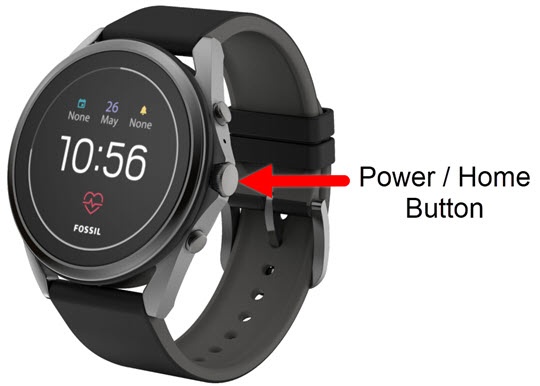
  1. From the watch screen, press the
    Power /
    Home button
    to open the apps screen.
    Power Home button
  2. Tap the
    Settings icon
    .
  3. Navigate:
    Personalization
    Accounts
    Add Google Account
    .
  4. From the 'To add a Google...' screen, tap
    Add from phone
    .
  5. From the 'Accounts' screen on the smartphone do one of the following:
    • Tap the email account you want to add.
    • Tap
      Add another account
      .
  6. Tap the switch (right of email) to turn on to copy to the watch.
  7. From the 'Copy to your watch?' screen, tap
    Copy
    .
    If prompted, enter your password then tap
    SIGN IN
    .