Stream TV - Install Device Software Updates
Here's how to check for and install software updates on your 2nd-generation Stream TV.
The steps below apply to the 2nd-generation Stream TV which can be identified by the Find My Remote button. If you have the original Stream TV model, refer to Stream TV - Install Device Software Update. 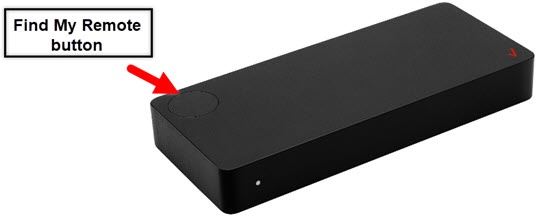
- If necessary, press theHome button
on your Stream TV remote to wake up your device.
- From the Stream TV Home screen, select theSettings menu
(upper-right).
Utilize 5-way navigation pad on the remote to highlight and the center (OK) button to select. - Navigate: .
- SelectSystem update.
- If necessary, selectCheck for update.If presented with 'Your system is up to date', press theHome buttonon the remote to exit.
- Wait for available update(s) to begin automatically.If necessary, selectDownload.
- When the update is complete, selectRestart Now.
For additional info, see this Stream TV support page.