Fossil Gen 5 LTE Smartwatch - Add / Remove a Wi-Fi Connection
Here's how to connect to a Wi-Fi network or remove a saved connection on youR Fossil Gen 5 LTE Smartwatch.
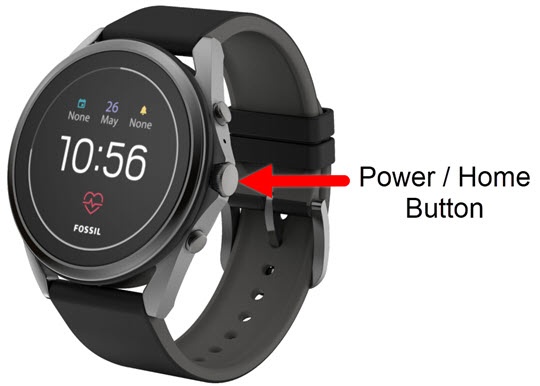
- From the watch screen, press thePower / Home buttonto open the apps screen.
- Navigate:.Settings iconConnectivityWi-Fi
- Perform one of the following:
- Connect to an Available Wi-Fi Network
- TapAdd network.
- Tap the desired available Wi-Fi connection.
- Tap eitherEnter on phoneorEnter on watch.
- Enter the Password (if required) then tap theDone icon
.
- TapConnect.
- Manually Connect to a Wi-Fi Network
- TapAdd network.
- TapAdd hidden network.
- Read the disclaimer, then tapOpen on phoneto continue setup on your smartphone.
- TapNetwork namethen enter the name of the desired network.
- TapSecuritythen select the security type (e.g., WEP, WPA/WPA2).
- TapPasswordthen enter the password.
- TapConnect.
- Remove a Wi-Fi Connection
- TapSaved networks.
- Tap the desired Wi-Fi connection.
- From the 'Forget network....' screen, tap theDone icon
to confirm.