Verizon 5G Internet Gateway (LVSKIHP) Establish Wired Connection
Verizon 5G Internet Gateway (LVSKIHP)
Establish Wired ConnectionConnecting via Ethernet provides a more stable and reliable connection to your Verizon 5G Internet Gateway (LVSKIHP). It reduces lag, minimizes interference and ensures consistent speeds for activities like gaming, streaming and video conferencing.
Before you begin
This content is for the 5G Internet Gateway (LVSKIHP). Refer to How to Identify Verizon 5G Home Equipment if you need to verify the model you're using.
Steps
- Plug one end of the Ethernet cable into an Ethernet port on the computer.
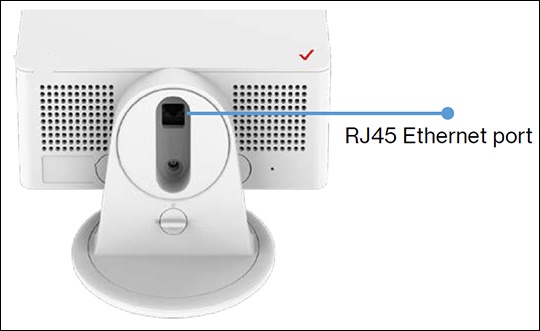
- Plug the other end of the Ethernet cable into the LAN port on the bottom of the 5G Internet Gateway.
- If necessary, power on the device and computer.
- Ensure the LAN Port's LED is solid green.For assistance in locating the LAN Port, refer to Verizon 5G Internet Gateway - Locate Ports, Connectors and Buttons.If testing fails, try replacing your Ethernet cable then try to test the connection again.