Inseego MiFi 2100 5G UW - Restore Settings to Factory Defaults
If your MiFi 2100 5G UW powers off, crashes / resets, freezes or runs slow, view this info.
Restore Settings to Factory Defaults on your Inseego MiFi® 2100 5G UW only if absolutely necessary as it removes all modified settings including Network Name (SSID), Wi-Fi / Admin Password, etc.
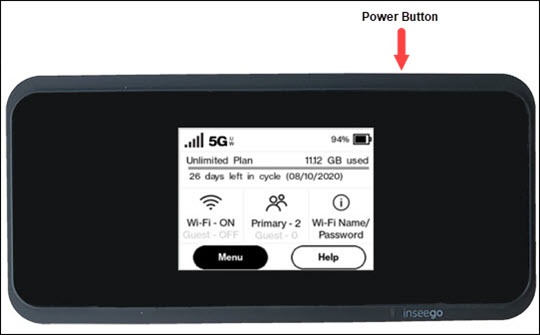
- From the Home screen, tapMenu(lower-left).If necessary, press thePower button(top-right edge) to turn on the display.
- TapSettings.
- TapFactory Reset.
- TapFactory Resetagain.
- To continue, review the disclaimer then tapConfirm.Allow several minutes for the reset process to complete.After restoring to factory defaults, ensure Power Management Settings are set to the preferred options.
- If the steps above don't work, try one of the following:
- Reset using the button method
- Reset via the admin site
Button Reset
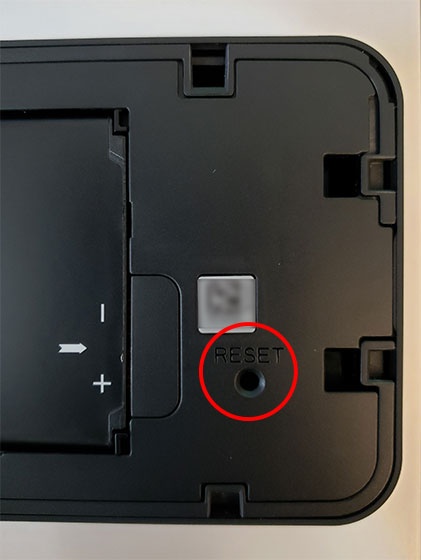
- You can also perform a factory reset by removing the battery cover then pressing the reset button (using a paperclip or similar tool) for 10 seconds or until 'MiFi resetting' appears on the display.The Reset button is located inside the hole marked RESET to the right of the battery.
Admin Site Reset
- Access the Admin Web Interface.
- From the Settings section, click thenavigation arrow
(lower-right) to open the Settings page.
- From the Settings tab, clickBackup and Restore.
- From the Restore to Factory Defaults section, clickRestore Factory Defaults.
- To continue, review the info then clickReset.Allow several minutes for the restore process to complete.After restoring to factory defaults, ensure Power Management Settings are set to the preferred options.