Verizon Orbic Speed - Manage Wireless Network Security Settings
Here's how to view / change security settings (e.g., password, sleep time, etc.) for your Orbic Speed.
To view or change network security settings (e.g., Wi-Fi password, number of connected devices) for your Orbic® Speed™ see this info.
- Access the Admin Web Interface.
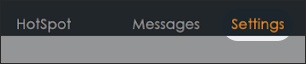
- From the top menu, clickSettings.
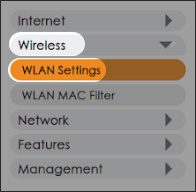
- From the left menu, clickWireless>WLAN Settings.
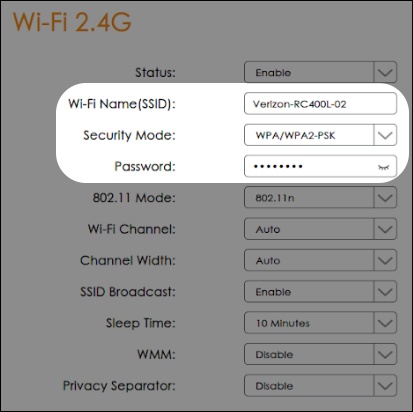
- From either the 'Wi-Fi 2.4G' or 'Wi-Fi 5G' section, configure Wi-Fi settings as desired:Depending upon the selected security type, available options may vary.
- Status
- Wi-Fi name (SSID)
- Security Mode
- WPA/WPA2-PSK
- WPA2-PSK
- PasswordIf the Wi-Fi Password is changed, the network settings on the computer must updated. For assistance, select the appropriate operating system:
- 802.11 Mode
- 802.11n
- 802.11g
- 802.11b
- Wi-Fi Channel (Auto, 1-11)
- Channel Width
- Auto
- 40MHz
- 20MHz
- SSID Broadcast
- Sleep Time
- WMM
- Privacy Separator
- ClickApply.