Verizon Orbic Speed - Port Filtering
Here's how to block access to services or apps on your Orbic Speed.
- Changing advanced settings may be harmful to the stability, performance and security of your Verizon Orbic® Speed™ Contact your local IT administrator prior to altering any of these settings.
- Port Filtering is an advanced feature. For additional assistance, contact your IT support. To obtain settings, contact the app manufacturer.
Enable / Disable Port Filter
- Access the Admin Web Interface.
- From the top menu, clickSettings.
- From the left menu, do one of the following:
- Enable / Disable Port Filter
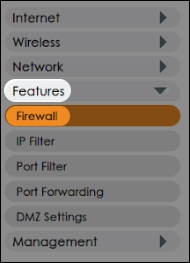
- From the left menu, clickFeatures>Firewall.
- From the 'Port Filter' dropdown, select either 'Enable' or 'Disable' then clickApply.
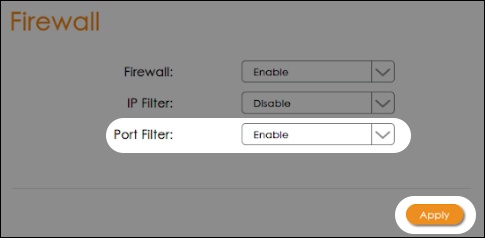
Manage Port Filter
- Access the Admin Web Interface.
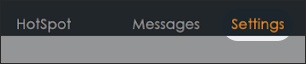
- From the top menu, clickSettings.
- From the left menu, do one of the following:
- Manage Port Filter
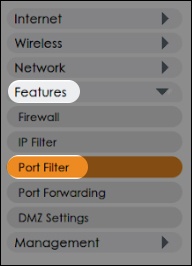
- From the left menu, clickFeatures>Port Filter.
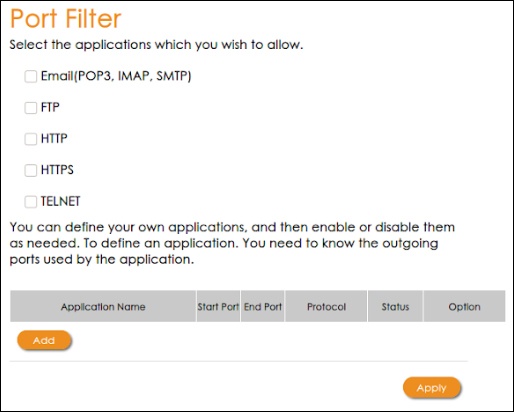
- From the 'Port Filtering' section, configure as desired then clickApply.