Verizon Orbic Speed - Configure Advanced Settings
Here's how to change advanced settings (e.g., Networks, Manual DNS, etc.) on your Orbic Speed.
To change the advanced settings (e.g., Manual DNS, Firewall, etc.) on your Orbic® Speed™ view this info.
Changing advanced settings may be harmful to the stability, performance, and security of the device. Contact your local IT admin prior to altering any of these settings.
Internet
For info regarding APN settings, refer to Edit Access Point Name (APN).
- Access the Admin Web Interface.
- ClickSettings(top menu).
- Click the following:
- Internet
- From the left menu, click .
- From the Mobile Connection section, click the dropdown to turn mobile data on or off.
- Select the Network Mode and Network Operator (Auto Select/Manual Select) dropdown.
- ClickApply.
To turn Mobile data on via the device, do the following:
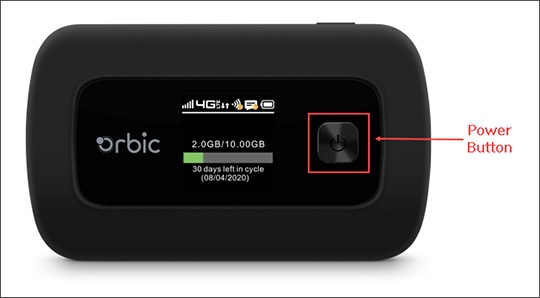
- Press thePower buttonon the front of the device to display the main screen.
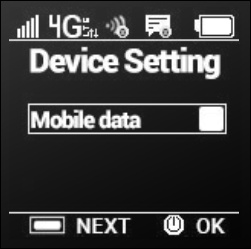
- Press theMenu button(top-right) until the 'Device Settings' section displays then press thePower button.
- Press theMenu buttontwice to navigate to 'Mobile data' then press thePower buttonto turn on or off.On when a checkmark is present.
Manual DNS
Domain Name Server (DNS) settings are automatically assigned by the device. If turning on manual DNS is necessary, contact your local IT administrator for assistance.
- Access the Admin Web Interface.
- ClickSettings(top menu).
- Click the following:
- Manual DNS
- From the left menu, clickDNS Settings.
- SelectEnableorDisablefrom the DNS dropdown to turn on or off.
- From the Primary DNS and Secondary DNS fields, enter the appropriate info.
- ClickApply.
Firewall
- Access the Admin Web Interface.
- ClickSettings(top menu).
- Click the following:
- Firewall
- From the left menu, click .
- From the Firewall dropdown, selectEnableorDisable.
- ClickApply.