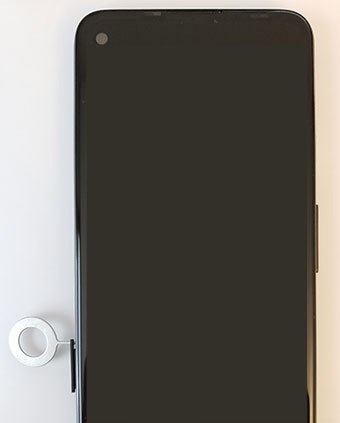
Google Pixel 4a Insert / Remove SIM Card
Google Pixel 4a
Insert / Remove SIM CardSwitching to a new device, traveling or troubleshooting a connectivity issue? Learn how to quickly and easily insert or remove the SIM card for your Pixel 4a.
Before you begin
Don't try to insert or remove the SIM card while the device is powered on because it may harm the SIM card or the device.
Steps
- From the bottom left edge of the device with the display facing up, insert the SIM removal tool into the hole to remove the card tray then push in until the tray ejects.
- Do one of the following:
- To insert a SIM card: Using the notch in the card as a guide, insert the SIM card into the tray with gold contacts facing up.
- To remove a SIM card: Lift the card from the tray.
- Carefully reposition the tray into the slot and push it gently back into the phone.