Samsung Galaxy Book S - Set Up Your Phone app
Here's how to sync your iOS / Android device and your Galaxy Book S.
- Link your mobile device to your Galaxy Book S to get instant access to content.
- To link your Android™ phone, your phone must be running Android 7.0 or later.
- From the Home screen, tap or click theStart key(lower-left).
- Navigate:Settings
>
Phone. - Tap or clickAdd a Phone.
- Tap or click your phone type then tap or clickContinue:
- AndroidWith Android devices, get instant access to photos, notifications and text messages on your Galaxy Book S.
- Install the 'Your Companion app' on to your Android device from the Google Play™ Store .
- Once installed, open the 'Your Companion app' on your phone.
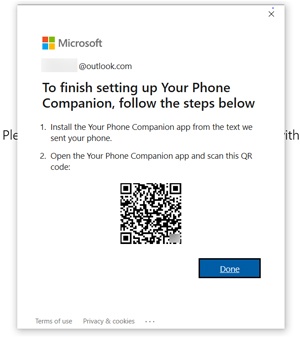
- Scan the QR code provided from the prompt on your Galaxy Book S then tap or clickDone.
- iPhone®With iPhone, send webpages from your phone to your PC or vice versa.
- Install the 'Microsoft Edge app' from the App Store® .
- Once installed, open theMicrosoft Edge app.
- Tap or click theUser icon
(upper-right).
- Enter your Microsoft account then tap or clickNext.
- Enter your password then tap or clickSign in.
- Install the 'Microsoft Edge app' from the App Store® .
- Once installed, open theMicrosoft Edge app.
- Tap or click theUser icon
- Enter your Microsoft account then tap or clickNext.
- Enter your password then tap or clickSign in.

For additional info, visit the Microsoft Windows support page.