motorola razr - Common Camera Settings
Here's info on common camera settings (e.g., flash, timer, front / rear camera, etc.) for your razr.
For additional info on camera settings, refer to the Camera section of the user guide.
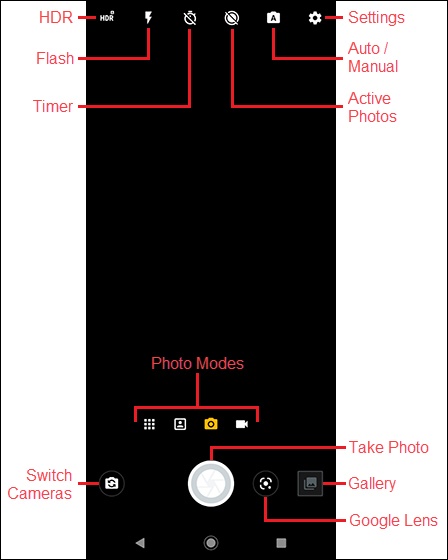
HDR
HDR (High Dynamic Range) combines photos or videos taken at different exposures for one optimal photo or video.
- From a Home screen, tap theCamera icon
.
- Tap theHDR icon
to select an option:
- Auto
- On
- Off
Flash
- From a Home screen, tap theCamera icon
- Tap theFlash icon
to select an option:
- Flash Auto
- On
- Off
Timer
- From a Home screen, tap theCamera icon
- Tap theTimer icon
to select an option:
- Timer Off
- 3 seconds
- 10 seconds
Active Photos
This option only appears in Auto mode.
- From a Home screen, tap theCamera icon
- Tap theActive Photos icon
to select an option:
- Active Photos Auto
- On
- Off
Auto / Manual
- From a Home screen, tap theCamera icon
- Tap theAuto / Manual icon
to select Auto or Manual.
When set to Manual, more options appear on the right side of the screen (white balance, shutter speed, etc.).
Photo Modes
- From a Home screen, tap theCamera icon
- To change photo modes, tap thePhoto Modes icon
or swipe the screen right then tap the preferred option:
Tap the 'Photo icon'or 'Video icon'
to switch between Photo and Video camera modes.
- Photo modes:
- Portrait
- Cutout
- Spot Color
- Night Vision
- Cinemagraph
- Panorama
- Live Filter
- Video modes:
- Slow Motion
- Timelapse
Switch Cameras
- From a Home screen, tap theCamera icon
- Tap theSwitch cameras icon
to switch between the front or rear camera.
Settings
- From a Home screen, tap theCamera icon
- Tap theSettings icon
to access these options:
- External display settings: Tap the switch(es) to turn on
or off
:
- Instant Review
- Camera Cartoon
- Primary camera: Select the option then configure as preferred:
- Photo size
- Ratio (4:3, 16:9, 21:9)
- Resolution (16MP, 8MP)
- Video size (e.g., 4K UHD, FHD, etc.)
- Slow motion size (FHD, HD)
- Internal camera: Select the option then configure as preferred:
- Photo size (4:3, 16:9, 21:9)
- Video size (FHD, FHD (21:9), HD)
- HDR (Auto, On, Off)
- Selfie photo mirrorTap theswitchto turn on or off.
- Capture settings:
- TapQuick capture, tap theswitchto turn on or off then select 'Rear camera' or 'Selfie camera'.Tap then configure additional settings on the next screen.
- Tap anywhere to capture
- Shutter sound
- Assistive grid
- Leveler
- WatermarkTap then configure additional settings on the next screen.
- AI settings: Tap the switch(es) to turn on or off:
- Auto Smile Capture
- Gesture Selfie
- Smart Composition
- Shot Optimization
- Google Lens
- Save settings: Tap theSave location switchto turn on or off.