Samsung Galaxy Watch Active2 - Reset Network Settings
Here's how to reset settings if your Galaxy Watch Active2 can't connect to data or send / receive messages.
If you can't connect to the network, or are having trouble receiving calls or messages resetting the network settings may help.
By performing the steps below, the following are cleared or restored to default values:
- Cellular connection (cellular needs to be set up again).
- Wi-Fi network settings (including saved networks and passwords).
- Bluetooth®
Reset the network settings using one of the following methods:
- From the Galaxy Watch Active2
- From the Galaxy Wearable app
Reset Network Settings from the Galaxy Watch Active2
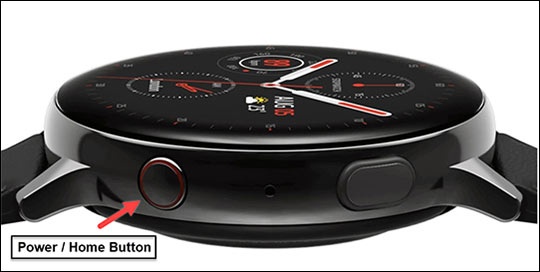
- From the watch screen, press theHome buttonto open the apps screen.
- Navigate:.SettingsConnectionsMobile networks
- TapReset mobile networks.
- To continue, review the info then tap theRadio buttonto agree.If presented, enter the current PIN, password, or pattern.
- To confirm, tapReset.

Reset the Network Settings from the Galaxy Wearable app
- From a Home screen on your companion phone, do one of the following:
- For Android smartphones, open theGalaxy Wearable app.
- For Apple iPhones, open theSamsung Galaxy Watch (Gear S) app.
- From the Home tab, tapMobile plans.If necessary, tapWatch settingsthen tapMobile plans.
- Tap theMenu icon
(upper-right).
- TapReset mobile networks.
- To continue, review the info then tap theRadio buttonto agree.If presented, enter the current PIN, password, or pattern.
- TapReset.