Samsung Galaxy Tab S5e - Common Camera Settings
Here's info on common camera settings (e.g., storage, timer, shooting modes, etc.) for your Galaxy Tab S5e.
For additional info on camera settings, refer to the Camera section of the user guide.
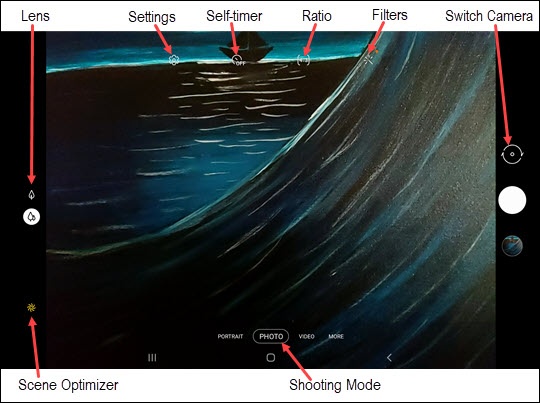
Settings
- From a Home screen, tapCamera
(lower-right).
If not available, swipe up or down from the center of the display then tapCamera. - TapSettings
.
- Tap any of the following options to turn on
or off
:
- HEIF pictures
- Scan QR Codes
- Save selfies as previewed
- High efficiency videos
- Auto HDR
- Grid lines
- Location tags
- Shutter Sounds
- SelectShooting Methodsthen tap any of the following options to turn on or off:
- Floating Shutter button
- Show palm
- TapPress Volume key tothen select an option (e.g., Take picture or record video, Zoom in or out, etc.).
Self-timer
Used to select the length of the delay before the camera takes a photo automatically.
- From a Home screen, tapCameraIf not available, swipe up or down from the center of the display then tapCamera.
- Tap theSelf-timer icon
.
- Select an option:
- Off
- 2 secs
- 5 secs
- 10 secs
Ratio
- From a Home screen, tapCameraIf not available, swipe up or down from the center of the display then tapCamera.
- Tap theRatio icon
.
- Select an option:Options vary in portrait / landscape mode.
- 4:3
- 16:9
- 1:1
- Full
Filters
Used to apply a beauty or filter effect.
- From a Home screen, tapCameraIf not available, swipe up or down from the center of the display then tapCamera.
- Tap theFilters icon
.
- Swipe up or down through options on the left to choose a preset effect (e.g., Warm, Cool, Lolli, etc.).
Switch Camera
- From a Home screen, tapCameraIf not available, swipe up or down from the center of the display then tapCamera.
- On the photo preview screen, swipe up or down from the center of the display or tap theCamera Facing icon
to switch between rear and front-facing camera.
Scene Optimizer
- From a Home screen, tapCameraIf not available, swipe up or down from the center of the display then tapCamera.
- Tap theScene Optimizer iconto automatically adjust the color and effect for the current scenery.If the icon is not displayed, tapSettings

Shooting Modes
- From a Home screen, tapCameraIf not available, swipe up or down from the center of the display then tapCamera.
- To change the camera mode, swipe left or right to select an option:
- If necessary, tapMOREto show additional shooting modes.
- PORTRAITTake portraits by adjusting the background of the shot.
- PHOTOCapture a picture.
- VIDEOCapture video.
- PANORAMATap the Camera button then pan slowly in one direction.
- PROManually adjust the ISO sensitivity, exposure value, white balance, and color tone.
- HYPERLAPSECreate time-lapse videos.
Lens
- From a Home screen, tapCameraIf not available, swipe up or down from the center of the display then tapCamera.
- Tap theWide-angle lens icon
for basic photos or
Telephoto lens iconfor 2x optical zoom.