Samsung Galaxy A50 Insert or Remove SD / Memory Card
Samsung Galaxy A50
Insert or Remove SD / Memory CardIf your Galaxy A50 is low on storage, use an SD card for extra space. Follow these steps to insert or remove it without losing data.
Steps
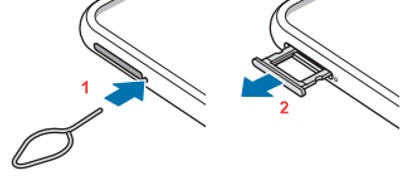
- With the device powered off and the display facing up, remove the card tray from the left edge of the device.Use the insertion/removal tool or a paperclip to unlock the tray by inserting it into the provided slot (figure 1) then remove the tray (figure 2).
- Do one of the following:
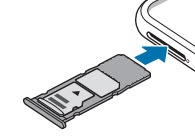
- To insert an SD / memory card: With the gold contacts facing down, insert the SD / memory card into the tray then press in on the card to lock it into place.
- To remove an SD / memory card: From the bottom of the card, carefully lift to remove. Use the opening on the opposite side of the tray to dislodge.
- Reinsert the card tray then press in to lock it into place.