KYOCERA DuraForce PRO 2 - Insert / Remove SIM Card
Here's how to properly insert or remove a SIM card for your DuraForce Pro 2.
Instructions on inserting/removing your SIM can help with activation issues / errors, browser connection problems and a blank or frozen screen.
Don't attempt to insert/remove the SIM card while the device is powered on. Doing so may harm the SIM card and/or the device.
- Ensure the device is powered off.
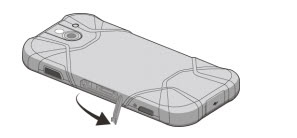
- With the display facing down, open the SIM / microSD card slot cover (left side of phone).
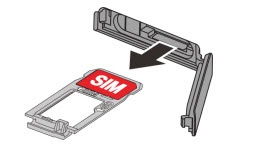
- Remove the tray by hooking your fingernail and pulling on the top edge of the tray.
- Do one of the following:
- Insert SIM cardEnsure the gold contacts are facing the screen and the notch is located in the lower-right.
- Remove SIM CardOnce the tray is removed, lift the SIM card from the tray.
- Insert the tray into the phone, being careful not to let the card slide out.
- Gently push the tray in until it clicks.
- After the tray is back in the phone, securely close the card slot cover.Make sure the SIM / microSD slot cover is properly sealed to maintain the phone's waterproof capability.