Kyocera DuraXV LTE - Set Date and Time
If your DuraXV LTE shows the incorrect date and/or time, here's how to correct it.
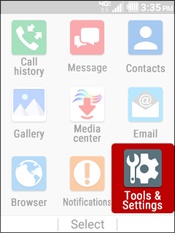
- From the main screen, selectMenu.Utilize the 5-way navigation pad to highlight and the center button to select.
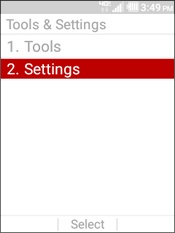
- SelectTools & Settings.
- SelectSettings.
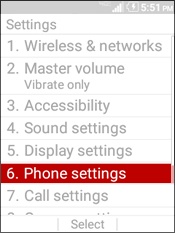
- SelectPhone Settings.
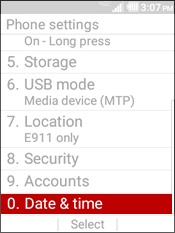
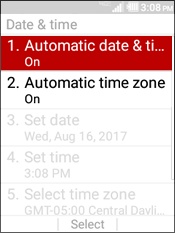
- SelectDate & time.
- To use network-provided values, select the following:
- Auto-date & time
- HighlightOnthen selectSet.
- Auto-time zone
- HighlightOnthen selectSet.
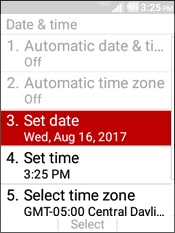
- When manually setting date and time, perform the following steps:Auto-date & time and auto-time zone settings must be turned off to manually adjust the date and time.
- 24 hour
- 12 hour
- SelectSet date.
- Adjust the date then selectSet.
- SelectSet time.
- Adjust the time then selectSet.
- SelectSelect time zone.
- HIghlight a time zone then selectSet.
- SelectUse 24-hour format.
- Highlight an option then selectSet:
- 24 hour
- 12 hour