Common Camera Settings - ASUS ZenPad™ Z8s
Here's info in common camera settings, (e.g., flash, timer, front / rear camera, etc.) for your ZenPad Z8s.
For additional info on camera settings, refer to the Your precious moments section of the user guide.
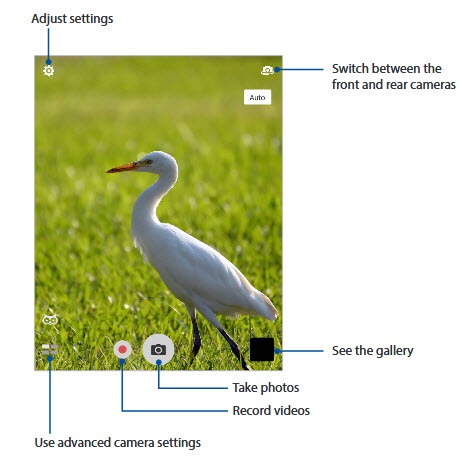
- From a Home screen, tap theCamera icon
(at the bottom).
- Select an option:
- Shutter (photo and video)
- Mode selection
- Camera Switch
- Settings
Shutter (photo and video)
- From a Home screen, tap theCamera icon
- Select a camera option:
- Tap theCamera iconto take a picture.
- Tap theVideo iconto record a video.


Mode Selection
- From a Home screen, tap theCamera icon
- Tap theMode icon.
- Select an option (e.g., Auto, HDR Pro, Children, Time Rewind, etc.)

Switch Cameras
- From a Home screen, tap theCamera icon
- Tap theSwitch Camera iconto select the front or rear camera.

Camera Settings
- From a Home screen, tap theCamera icon
- From the main camera screen, tap theSettings icon.
- Tap theCamera Settings icon.
- Tap theDropdown icon(s)
then adjust the following settings as preferred:
- Camera Resolution
- Image quality
- ISO
- Exposure value
- Anti-shake enhancement


Video settings
- From a Home screen, tap theCamera icon
- From the main camera screen, tap theSettings icon.
- Tap theVideo Settings icon.
- Tap theDropdown Menu icon
- White balance
- Exposure value
- Video quality
- Video Recording Sound
- Video preference
- Tough auto-exposure

General settings
- From a Home screen, tap theCamera icon
- From the main camera screen, tap theSettings icon.
- Tap theGeneral Settings icon.
- Tap the following switche(s) to turn on or off.On when a checkmark is present.
- Smart brightness
- Guidelines
- Camera status
- Burst review
- Tap the following Dropdown menu icon(s)
- Review duration
- Anti-flicker
- Power-saving mode
- Set volume key as
- If preferred, to reset camera to default settings:
- TapRestore default settings.
- TapOK.
