ASUS ZenPad™ Z10 - Common Camera Settings
Here's info on common camera settings (e.g., flash, timer, front / rear camera, etc.) for your ZenPad Z10.
For additional camera settings, refer to the ASUS ZenPad Z10 user guide.
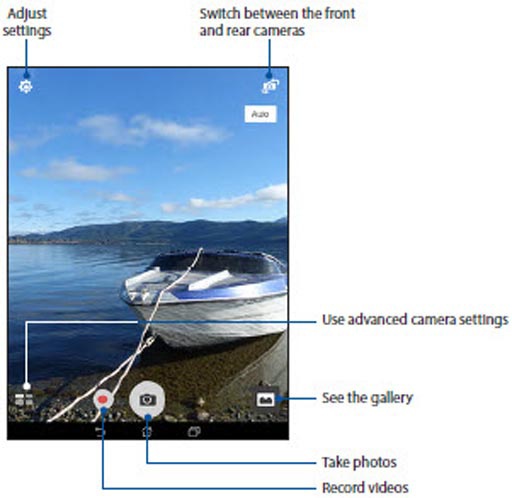
Advanced Camera Settings
- From a Home screen, tap theCamera icon(at the bottom).
- Tap theAdvanced Camera Settings icon(at the bottom).
- Select from the following options:
- Auto
- HDRHigh Dynamic Range: Combines photos or videos taken at different exposures for one optimal photo or video.
- Beautification
- UR Code
- Low Light
- Night
- Depth of field
- Effect
- Selfie
- GIF Animation
- Panorama
- Miniature
- Time Rewind
- Smart Remove
- All Smiles
- Slow Motion
- Time lapse


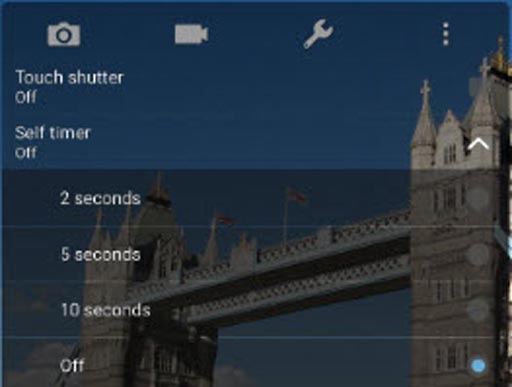
Timer
- From a Home screen, tap theCamera icon(at the bottom).
- Tap theAdjust Settingsicon.
- Tap theCamera iconthen tapSelf timer.
- Select an option:
- 2 seconds
- 5 seconds
- 10 seconds

Rear or Front Facing Camera
- From a Home screen, tap theCamera icon(at the bottom).
- Tap theCamera Facing iconto switch between rear and front-facing camera.

Settings
- From a Home screen, tap theCamera icon(at the bottom).
- Tap theAdjust Settings icon.
- To utilize Volume buttons to take pictures or videos:
- TapSet volume key as.
- Select an option:
- Zoom
- Shutter
- To change the storage location for pictures or videos:
- TapSave to.
- Select an option:
- Internal storage
- MicroSD